
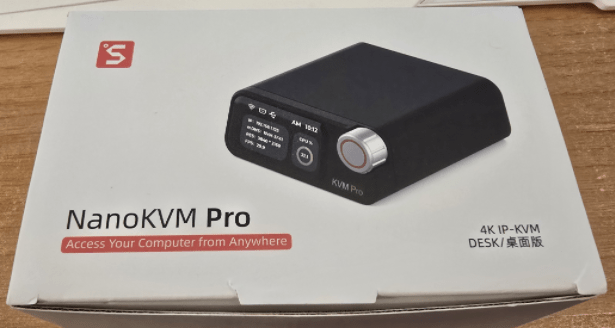
Unlike the JetKVM, this new NanoKVM Pro, on connecting USB power and which came from the target machine, and the HDMI, this time a full-size HDMI connector, the target PC came up in my main PC browser (I found the address of the KVM from my router – I could have looked at the display but it’s at the other end of the room where at first it was showing the time several hours out because I didn’t set the region) and immediately asked me to enter username and password. So I just tried at random: admin and admin. That went in, and then it immediately asked me to put a new password in.
I didn’t get any documentation with the NanoKVM but quickly realised that there is an FAQ out there with more information than I could ever need. See below..
Here is YouTube running on the target machine – coming straight into my PC from the KVM – in Chrome browser.
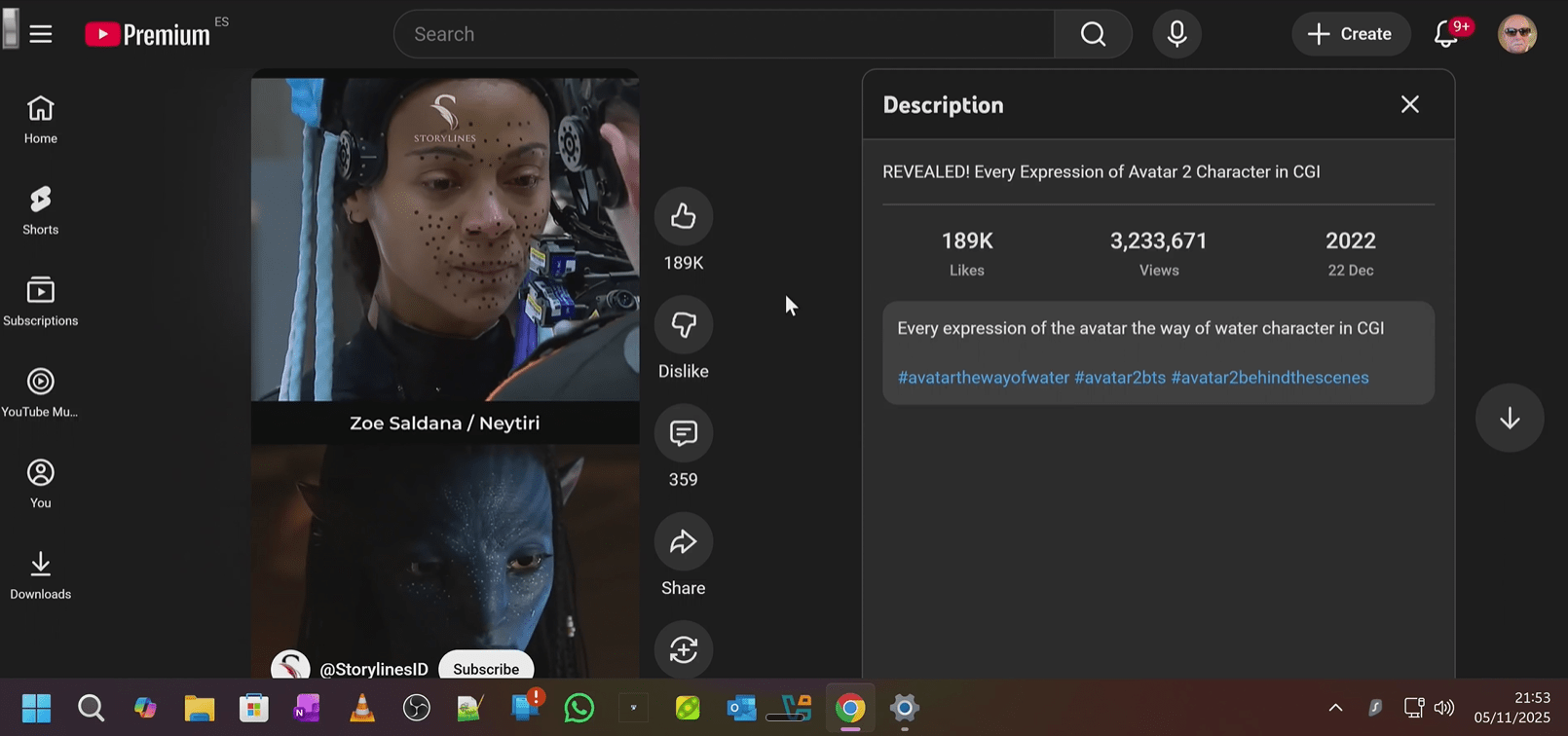
And here below are the controls which actually sit at the top of the browser window. All looking very logical and I noticed a muted icon – which immediately confirmed that sound is supported by the KVM but muted on power-up… YUP – sound works great – video works great – but at first I could not seem to get the mouse and keyboard to control the target machine.. then realised there’s a USB for power (and more as it happens) and one for HID (i.e. mouse and keyboard control). Well, it turns out if you use the HID input and your target USB can provide enough USB-C power out – you only need the HID connection – I did that at first and it worked just fine.

Oh and I found the docs online – see below – if you are at all interested in KVMs you must read this document…
Step 1 complete – I had a working KVM that although not in the sturdiest box compared to the GL-iNet product or the JetKVM, still looked good and supported sound and rock-solid video no problem.
There’s a TINY lag on the mouse trail but the lowest I’ve seen so far. The little display on the front not only shows status, amazingly, it can also show a miniature version of the HDMI live image it is sending to the host PC – this is MARVELOUS. Am I too easily impressed? You tell me..

The rightmost image above is full-screen YouTube as appears on the target machine but shrunk down for the on-device display.
Host-Target keyboard copy-paste is partially implemented, could be better – but I’m assured the rest will come.
And if you don’t like the interface, the product can easily change to use PiKVM – all documented here.
At this point I could end by saying that the device is recommended, not necessarily the cheapest, but the best I’ve come across up to now. But that would be missing SO much. I’m going to keep this short for now as I have a couple of questions of the manufacturer – but – are you ready for this, with the addition of a 5v RGB LED strip (ws2812-type) which the company can supply, this unit also doubles up as an HDMI-driven AMBILIGHT. Have you seen the cost of HDMI-driven AMBILIGHTS?
AliExpress link here...
Update December 2025: Firmware updates out and the HDMI passthrough and Ambilight-type LED display works brilliantly.
This just keeps getting better: I’m about to head off to the UK for the Christmas, and I wondered whether I should take the KVM with me so I could play with the lights. I thought, “Well, I’m all Wi-Fi in the UK, how am I going to use it?” It turns out it’s got Wi-Fi 6, so that’s good. I started going through the menu, put it on its own access point so I could actually run it. I started going through the menu, and I just happened to stumble a clock cross a tail scale setting. Tailscale is not installed, but I shall hook the cable up again and install TailScale because I use TailScale for everything else.
Meanwhile, back to the Wi-Fi. After connecting to the inbuilt WiFi access point of the KVM Pro, I could choose then to hook the unit into my own WiFi. Unlike most systems where you key in 192.168.4.1, the unit uses 192.168.12.1 – not an issue because you can connect to the access point and then to it’s web page by simply scanning the QR code that comes up on the mini-screen. No more keying in addresses.